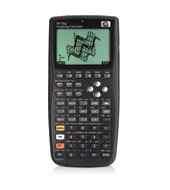
Guy Teague wrote:
the Hp-50G does things. When designing an 'interface', designers must
choose between "easy to learn" and "easy to use", the difference being
that "easy to learn" interfaces provide much more help, and many more
cues to the novice; they provide helpful prompts and a consistent,
single method for accomplishing a goal. Whereas, "easy to use"
interfaces usually provide far less help, but are very quick to use
after mastery has been achieved, are more efficient, usually offer more
possibilities, and often provide several ways to accomplish a particular
goal. The HP-50G's interface is heavily weighted to the latter end of
the scale. This is partly historical (they attempted to provide great
functionality on minimal hardware, and thus had no room for "help") and
partly a design philosophy.
Assigning a key is pretty simply at the core. Every possible keystroke
has a number, which includes the position of the key and the state of
all the modifier keys like ALPHA or LEFT SHIFT. There's also a
difference between pressing a shift key and letting go, and holding a
shift key down while pressing another key. All of these can be assigned
independently, so one key can do nine different things out of the box,
depending on shift state. That means you can make your calc very easy
to use, by assigning every task you have to a single keystroke, but hard
to learn (or remember, even with a cheat sheet). As it comes from the
box, most of the key-hold combos are unassigned, so the they default to
being the same as the un-held key.
Try this. We'll assign Filer6 to the LS-HOLD-APPS key. That way, we
can use the regular Filer by pressing LS (Left-Shift), letting go, and
pressing APPS; or we can use Filer6 by hold the LS key and pressing APPS.
The APPS key is number '21'. That's row 2, column 1. the default shift
state is '.1', no shift. The left shift is '.2', the right shift is
'.3', the ALPHA key is '.4'. So the left-shifted APPS key is '21.2'.
"Filer" is assigned to that by default. On my calc, << 2:Filer6 EVAL >>
is assigned there. The left-shift-hold-APPS keystroke is '21.21' (a '1'
in the hundredths place means "held"). To assign Filer6 to the
LS-Held-APPS key, we need a program that runs Filer6 from wherever we
put it. If it's in the HOME directory, << Filer6 >> is enough. If it's
in Flash, like mine, you need a program like the one I have, << 2:Filer6
EVAL >>. Make the shortest program you can make that runs Filer6, and
put it on the stack. Then put 21.21 on the stack. Then use the ALPHA
keys to type "ASN" , which take a program and a key number and assigns
the program to the key.
For any of these non-default assigned keystrokes to work, the "User
Keyboard" flag must be set. That flag is indicated by a small indicator
in the middle of the second line down on the display, which will be
either blank, '1US', or 'USR'. To toggle the state, use the left-shift
ALPHA key. Press that once, and '1US' appears; press it again, and
'USR' appears; press it again, and it goes blank. Try that. When
you're done, leave it in 'USR'. ('1US' means USR for one keystroke,
then blank. Bah!) Now try the LS-HOLD-APPS key. It should run Filer6.
Yay!
KEYMAN is pretty neat, and I use it, but you don't need it until you've
run out of keys to assign to programs. The way it works is, you make a
program, and stick it on the stack, just like we did above, to assign it
to a key. Then you make another program and put it on the stack also.
Then, with the KEYMAN menu, you press either 'IfL' or 'IfD'. Those take
both programs, and combine them into one program, which also includes
some code to detect a long-held key or double-tapped key (depending on
whether you chose 'IfL' or 'IfD'. Then you assign that program to a key
in the normal way, and now left-shift-held-APPS and left-shift-held-APPS
-held-longer do different things. You have just doubled (or more) the
number of possible keystrokes. I think that with various combinations
you can make one key do 21 different things. But who could remember them?
<snip>
inscrutable. Then I became more comfortable with the calc, learning how
to program it, and especially how to manipulate lists. Then with that
experience, I re-read the doc, and suddenly it was clear; setting up
APPSMAN is all list management, and docs assumed I knew how to do that,
since it was central to knowing how to use the calc effectively anyway.
The language of the calc is RPL, Reverse Polish Lisp, and lists are
the key to Lisp.
Before you customize your calc much more than what I've shown, you will
probably want to become really familiar with all of the ways it does
things. Read the AUR. Read the various little PDFs. There's no
substitute. At first, it won't be very easy, but once you get your
around the 'HP Way', it becomes much easier.
--
Dave Boyd
"If we hit that bullseye, the rest of the dominoes will fall
like a house of cards. Checkmate." -Capt. Zapp Brannigan, D.O.O.P.
> tks for the reply, dave. i spent several idle hours at work on the<grin> Yes, I'm afraid you have some work ahead of you in learning how
> hpcalc.org page and did indeed install filer6 although i have not yet
> figured out how to assign it in place of the regular filer. the hp method
> seemed daunting, but an app i downloaded in hopes of easing the process of
> keystroke reassignment, 'keyman', was even more daunting. i could not follow
> the example in the author's readme, so have temporarily abandoned it,
> although it would be nice to assign keys as double clicks or long clicks and
> leave the default assignments alone.
the Hp-50G does things. When designing an 'interface', designers must
choose between "easy to learn" and "easy to use", the difference being
that "easy to learn" interfaces provide much more help, and many more
cues to the novice; they provide helpful prompts and a consistent,
single method for accomplishing a goal. Whereas, "easy to use"
interfaces usually provide far less help, but are very quick to use
after mastery has been achieved, are more efficient, usually offer more
possibilities, and often provide several ways to accomplish a particular
goal. The HP-50G's interface is heavily weighted to the latter end of
the scale. This is partly historical (they attempted to provide great
functionality on minimal hardware, and thus had no room for "help") and
partly a design philosophy.
Assigning a key is pretty simply at the core. Every possible keystroke
has a number, which includes the position of the key and the state of
all the modifier keys like ALPHA or LEFT SHIFT. There's also a
difference between pressing a shift key and letting go, and holding a
shift key down while pressing another key. All of these can be assigned
independently, so one key can do nine different things out of the box,
depending on shift state. That means you can make your calc very easy
to use, by assigning every task you have to a single keystroke, but hard
to learn (or remember, even with a cheat sheet). As it comes from the
box, most of the key-hold combos are unassigned, so the they default to
being the same as the un-held key.
Try this. We'll assign Filer6 to the LS-HOLD-APPS key. That way, we
can use the regular Filer by pressing LS (Left-Shift), letting go, and
pressing APPS; or we can use Filer6 by hold the LS key and pressing APPS.
The APPS key is number '21'. That's row 2, column 1. the default shift
state is '.1', no shift. The left shift is '.2', the right shift is
'.3', the ALPHA key is '.4'. So the left-shifted APPS key is '21.2'.
"Filer" is assigned to that by default. On my calc, << 2:Filer6 EVAL >>
is assigned there. The left-shift-hold-APPS keystroke is '21.21' (a '1'
in the hundredths place means "held"). To assign Filer6 to the
LS-Held-APPS key, we need a program that runs Filer6 from wherever we
put it. If it's in the HOME directory, << Filer6 >> is enough. If it's
in Flash, like mine, you need a program like the one I have, << 2:Filer6
EVAL >>. Make the shortest program you can make that runs Filer6, and
put it on the stack. Then put 21.21 on the stack. Then use the ALPHA
keys to type "ASN" , which take a program and a key number and assigns
the program to the key.
For any of these non-default assigned keystrokes to work, the "User
Keyboard" flag must be set. That flag is indicated by a small indicator
in the middle of the second line down on the display, which will be
either blank, '1US', or 'USR'. To toggle the state, use the left-shift
ALPHA key. Press that once, and '1US' appears; press it again, and
'USR' appears; press it again, and it goes blank. Try that. When
you're done, leave it in 'USR'. ('1US' means USR for one keystroke,
then blank. Bah!) Now try the LS-HOLD-APPS key. It should run Filer6.
Yay!
KEYMAN is pretty neat, and I use it, but you don't need it until you've
run out of keys to assign to programs. The way it works is, you make a
program, and stick it on the stack, just like we did above, to assign it
to a key. Then you make another program and put it on the stack also.
Then, with the KEYMAN menu, you press either 'IfL' or 'IfD'. Those take
both programs, and combine them into one program, which also includes
some code to detect a long-held key or double-tapped key (depending on
whether you chose 'IfL' or 'IfD'. Then you assign that program to a key
in the normal way, and now left-shift-held-APPS and left-shift-held-APPS
-held-longer do different things. You have just doubled (or more) the
number of possible keystrokes. I think that with various combinations
you can make one key do 21 different things. But who could remember them?
<snip>
> what i was really looking for on the site was some way to consolidate all myHeh! I use this one, too. When I first read the docs, they were
> programs. they are scattered among vars, flash, library and apps. surely
> there is some way to run everything i want to have handy from one menu using
> aliases if necessary? i found a program called 'appman' (i think written by
> the same inscrutable author of 'keyman') which was the most frustrating app
> that i installed. basically the scanty documentation promised there was a
> way to rearrange the apps menu, to hide and add your own apps. but the only
> command for this program was called 'info' which yielded a list of variables
> and never told you how to manipulate any of them. what a tease! [g]
inscrutable. Then I became more comfortable with the calc, learning how
to program it, and especially how to manipulate lists. Then with that
experience, I re-read the doc, and suddenly it was clear; setting up
APPSMAN is all list management, and docs assumed I knew how to do that,
since it was central to knowing how to use the calc effectively anyway.
The language of the calc is RPL, Reverse Polish Lisp, and lists are
the key to Lisp.
Before you customize your calc much more than what I've shown, you will
probably want to become really familiar with all of the ways it does
things. Read the AUR. Read the various little PDFs. There's no
substitute. At first, it won't be very easy, but once you get your
around the 'HP Way', it becomes much easier.
--
Dave Boyd
"If we hit that bullseye, the rest of the dominoes will fall
like a house of cards. Checkmate." -Capt. Zapp Brannigan, D.O.O.P.