Yahoo Groups archive

Datacolor User to User Support Group.

Index last updated: 2026-04-28 23:18 UTC

Thread

Problem with the Spyder's colour profile

Problem with the Spyder's colour profile

2014-07-04 by lisamarie.savard@...

Hello,

I got a Spyder4Pro last December. I've never had a problem with it, until a few weeks ago when I ran my monthly fullcal.


Here is an example to illustrate my problem.


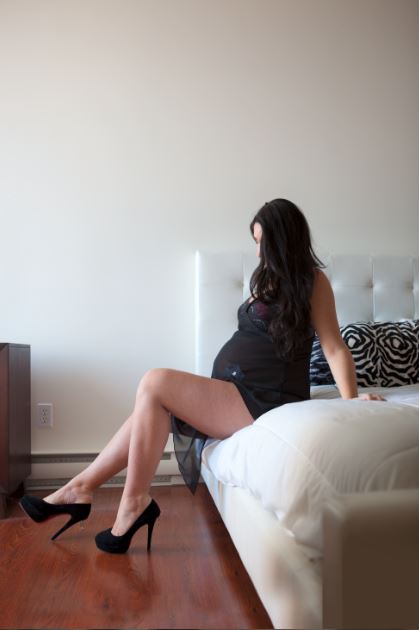
This image has been fully retouched in Lightroom, then Photoshop and this is what the final result should look like:

<iframe src="https://www.flickr.com/photos/lisaa5/14382157907/player/64a9100710" height="630" width="419" frameborder="0" allowfullscreen webkitallowfullscreen mozallowfullscreen oallowfullscreen msallowfullscreen></iframe>


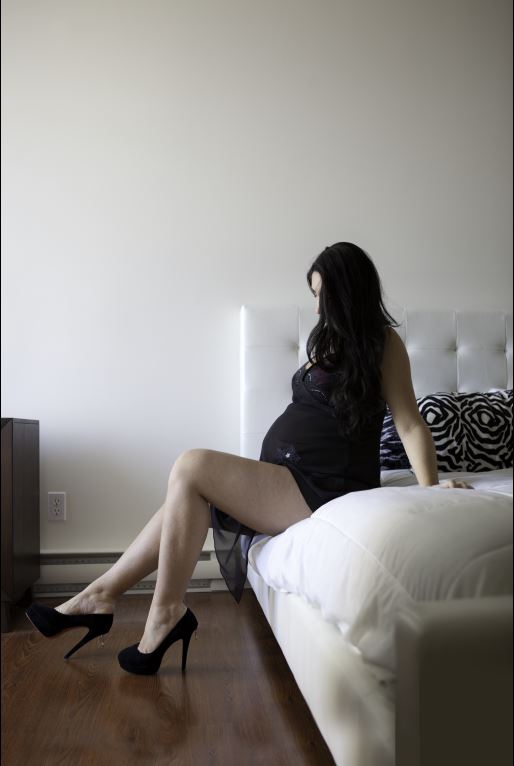
However, if I leave Photoshop and open it as a slideshow, or download it to social medias, this is how it appears: <iframe src="https://www.flickr.com/photos/lisaa5/14567787542/player/45ccae0730" height="640" width="429" frameborder="0" allowfullscreen webkitallowfullscreen mozallowfullscreen oallowfullscreen msallowfullscreen></iframe>


I thought this was the result of a bug during the fullcal, so I recalibrated it, but nothing has changed. I don't think I did something different this time.


Plus, I noticed this only happen with images that went through Photoshop. If I only retouch a photo in Lightroom, it will look fine everywhere, but not when I save it in Photoshop. The image mode is set to RGB and not CMYK. The problem also seems to be very apparent with photos that have a lot of warm colours (orange, red, yellow, brown).


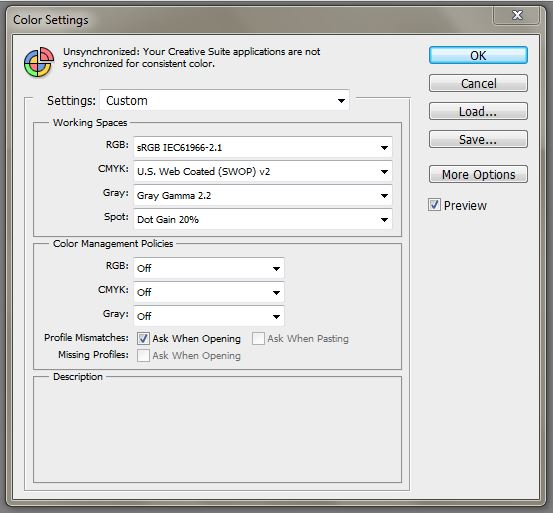
This is what the "Color settings" section looks like in Photoshop:

<iframe src="https://www.flickr.com/photos/lisaa5/14588696423/player/d5da85e984" height="513" width="553" frameborder="0" allowfullscreen webkitallowfullscreen mozallowfullscreen oallowfullscreen msallowfullscreen></iframe>

Anyone has an idea of what the problem could be? I have several images to deliver to clients soon and I don't want them to receive corrupted files...
Re: [datacolor_group] Problem with the Spyder's colour profile

2014-07-04 by David Miller

Those photos on your Flickr page can't be viewed, due to permissions problems.

In Photoshop's Color Settings dialog (can't know for sure since I can't view the
Flickr photo), make sure that you don't have your RGB working space set to your
display profile - that would be wrong. Use either sRGB or Adobe RGB.

David Miller

On Jul 3, 2014, at 8:14 PM, lisamarie.savard@... [datacolor_group] <datacolor_group@yahoogroups.com> wrote:


Hello,

I got a Spyder4Pro last December. I've never had a problem with it, until a few weeks ago when I ran my monthly fullcal.


Here is an example to illustrate my problem.


This image has been fully retouched in Lightroom, then Photoshop and this is what the final result should look like:

https://www.flickr.com/photos/lisaa5/14382157907/player/64a9100710" height="630" width="419" frameborder="0" allowfullscreen webkitallowfullscreen mozallowfullscreen oallowfullscreen msallowfullscreen>;


However, if I leave Photoshop and open it as a slideshow, or download it to social medias, this is how it appears: https://www.flickr.com/photos/lisaa5/14567787542/player/45ccae0730" height="640" width="429" frameborder="0" allowfullscreen webkitallowfullscreen mozallowfullscreen oallowfullscreen msallowfullscreen>


I thought this was the result of a bug during the fullcal, so I recalibrated it, but nothing has changed. I don't think I did something different this time.


Plus, I noticed this only happen with images that went through Photoshop. If I only retouch a photo in Lightroom, it will look fine everywhere, but not when I save it in Photoshop. The image mode is set to RGB and not CMYK. The problem also seems to be very apparent with photos that have a lot of warm colours (orange, red, yellow, brown).


This is what the "Color settings" section looks like in Photoshop:

https://www.flickr.com/photos/lisaa5/14588696423/player/d5da85e984" height="513" width="553" frameborder="0" allowfullscreen webkitallowfullscreen mozallowfullscreen oallowfullscreen msallowfullscreen>


Anyone has an idea of what the problem could be? I have several images to deliver to clients soon and I don't want them to receive corrupted files...


David Miller
Senior Software Developer, Digital Color Solutions
Datacolor

Re: Problem with the Spyder's colour profile

2014-07-04 by tlbtlb@...

I don't think this is a Spyder/calibration problem. It may perhaps be a Photoshop problem--what are your settings for Saving an image--or something to do with whatever you are using to display the image outside of Photoshop.

What OS are you using?

Terrie

Re: Problem with the Spyder's colour profile

2014-07-04 by lisamarie.savard@...

I haven't changed anything to my "photo-saving routine" in the past months, that's why I'm so puzzled.

I always use "Save as...", then save them as JPGs or PNGs with the "Baseline (Standard)" box checked.

My OS is Windows 7.

Re: [datacolor_group] Problem with the Spyder's colour profile

2014-07-05 by David Miller

On Jul 4, 2014, at 5:12 PM, lisamarie.savard@... [datacolor_group] <datacolor_group@yahoogroups.com> wrote:

> I haven't changed anything to my "photo-saving routine" in the past months, that's why I'm so puzzled.
> 
> 
> I always use "Save as...", then save them as JPGs or PNGs with the "Baseline (Standard)" box checked.
> 
> My OS is Windows 7.

I think your problem is this:

- When you're editing your images on your calibrated display, you're doing so inside of
color managed applications - Lightroom and Photoshop. These applications will use
your display profile as an additional "tweak" to adjust colors when the image is being
displayed on the screen. From a color management standpoint, this is the correct thing
to do, and this is the most accurate way for you to view the color of the images on your
calibrated display.

- When you're viewing them in other applications under Windows 7: if you don't see
the same color (the less saturated versions are the ones that look wrong, correct?) it's
because these applications aren't color managed. They're simply loading the image
data and displaying it on your screen without taking into account your display profile.

- If you reopen your saved image in Photoshop, it still looks "correct"? (Answer should
be, "yes"). And if you open your saved image in a different application, it looks "wrong",
less saturated, and different than when opened in Photoshop? (answer should be "yes).

- One other question: when you save your image from Photoshop, there's a checkbox
at the bottom of the Save dialog that asks whether or not to embed a color profile
in it (and the profile that's specified there will be your RGB working space, so it'll
say "sRGB" etc etc next to the checkbox. You should be checking that box when you
save it. When you do, a copy of sRGB is saved along with the image data as a "tag"
so that when another application opens it that supports color management, it'll
know what working space you were using when you were editing the image. If you
don't save an embedded profile, then even color managed applications such as
Photoshop will need your help in assigning a working space when they open it
again. To repeat: you need to embed your working space into the image when you
save it, otherwise all bets are off about how applications are going to display it,
either locally or over the web.

- As far as posting images on social media, they're then being viewed in a web
browser. Some web browsers are color management aware; others aren't. And
you also need to make sure that when you save the images, before you upload
them, that you embed (tag) a copy of your RGB working space into them. Here
are some links to sites that explain and demonstrate this in more detail:

http://cameratico.com/tools/web-browser-color-management-test/

http://www.gballard.net/psd/go_live_page_profile/embeddedJPEGprofiles.html

For your images to appear "correctly", you (a) need to save them with embedded
tags for your working space, (b) they need to be viewed in a web browser that
supports tagged profiles in images, and (c) for viewers to see, as closely as
possible, what you see on your own calibrated system, they should also be
working with a calibrated system.

That's how color management works. The idea is for everyone to be able to
"see" the same thing when they view an image, across a variety of computers,
operating systems, and displays with varying characteristics. For this to work
as best and completely as possible: the displays need to be calibrated; the
images need to be tagged with a working space; and the software displaying
the images (whether this is a web browser for viewing images on-line, or
an application for displaying them locally on the computer) needs to be
color-management aware, so that it can make use of the working space
(embedded in the image file) and the display profile (which is saved locally
on the computer when the Spyder calibrates the display) as a final adjustment
for the color.

David Miller

Re: Problem with the Spyder's colour profile

2014-07-05 by tlbtlb@...

>> <dm2363@...> : when you save your image from Photoshop, there's a checkbox at the bottom of the Save dialog that asks whether or not to embed a color profile in it (and the profile that's specified there will be your RGB working space, so it'll say "sRGB" etc etc next to the checkbox. You should be checking that box when you
save it.

That's what I was getting at when I asked what the settings were for the "Save As" options--although I have CS6, I've never actually gotten around to installing it on my relatively new Win7/Pro/64bit system and I'm still using Photoshop 7 so I wasn't sure what the current options are within "Save As".

I suspect that although Lisamarie has said that she's not changed anything, that it could be that the "embed color profile" option is not checked/has become unchecked particularly as she said that images worked only in Lightroom look ok--I've never used Lightroom so I'm not sure of how color management is implemented.


>> As far as posting images on social media, they're then being viewed in a web browser. Some web browsers are color management aware; others aren't.

Again, that's also what I suspected might be the issue.

Terrie


Re: Problem with the Spyder's colour profile

2014-07-07 by lisamarie.savard@...

Thank you both for your answers!

@ David: You got it right. The less saturated photo (titled 2.JPG) is the wrong version and it's how it appears in some software and websites. The one named "1.JPG" is how it should be viewed.

As far as I can remember, the colour profile box has always been checked. It is checked right now as well. There is probably something that I do wrong for some reason.

I had a look at the first link you sent. I use Chrome 35.0.1916.153 and I learnt that it doesn't support ICC v4 profiles. Maybe that's why I have so much trouble with warn colours. I will have a deeper look at the second link this week. I had a look at it quickly and it seems to represent my problem.

@ Terrie: The box is checked. I tried the "Save for web & design" option and realized that even there the colours look wrong. It's by default set to "Monitor color", but when I switch it to "Use document profile" it looks like what it's supposed to. However, if I put it on my personal website or social medias, it still looks wrong.

I'll keep you both updated if I manage to solve the problem!

Re: Problem with the Spyder's colour profile

2014-07-07 by tlbtlb@...

>> <lisamarie.savard@...>: However, if I put it on my personal website or social medias, it still looks wrong.

But...if I'm remembering correctly, you said that if you process it only in Lightroom when you upload to web/social media the image looks ok? If that is the case, there has got to be something in Lightroom that is different from Photoshop. As I mentioned, I've never used Lightroom so I can't advise you where to look.

Have you tried uploading an image that you saved using the "Save for web"n option with the "Monitor Color" chosen? What does it look like?

Terrie

Re: Problem with the Spyder's colour profile

2014-07-07 by lisamarie.savard@...

Yes, you are correct. Photos from Lightroom look fine, but not from Photoshop.

I saved them for web using the four available presets and the result it always the same, which means it's always wrong.

Re: Problem with the Spyder's colour profile

2014-07-12 by tlbtlb@...

>> <lisamarie.savard@...> :Yes, you are correct. Photos from Lightroom look fine, but not from Photoshop.

Then, it seems to me that you need to look into the differences between Lightroom and Photoshop with respect to both color management and your settings...

Terrie

Move to quarantaine

This moves the raw source file on disk only. The archive index is not changed automatically, so you still need to run a manual refresh afterward.